# Welcome to AIChatOne Docs

## Overview

AIChatOne not only provides a better UI for ChatGPT but also leverages your chat experience to the next level.

## Get Started

{% content-ref url="/pages/FR4W9TsciNiNPkoxlGvP" %}
[Get started with AIChatOne](/getting-started/get-started-with-aichatone)
{% endcontent-ref %}

{% content-ref url="/pages/qM0vau4UphJLnwPp4UzJ" %}
[Compare AIChatOne Plans](/getting-started/compare-aichatone-plans)
{% endcontent-ref %}


# Get started with AIChatOne

## What is AIChatOne？ <a href="#id-6cbaa99f98f444c7b554e270707eef2e" id="id-6cbaa99f98f444c7b554e270707eef2e"></a>

AIChatOne provides you with the power to harness the full potential of ChatGPT and other AI models so you can get the well-shaped AI responses that specifically tailor for your needs

This includes:

* Chat with the different LLM models such as GPT-3.5, GPT-4, Gemini, Claude-3, Claude-Instant, Llama 2, ChatGLM2, Ollama, Perplexity, Kimi etc all in one place and compare their results side by side
* Better way to manage your chats by folders, name, pin your chats or delete them in bulk
* More customization options to fine-tune the AI responses (prompt and AI character library, web search)

With nearly 20 chat models, and over 180 built-in prompts & AI characters, AIChatOne is all set to streamline your workflow and take manual work off your plate!

## Step-by-step to use AIChatOne <a href="#ce299c6d5755430da5e8574d96db77b9" id="ce299c6d5755430da5e8574d96db77b9"></a>

> 🔸 Click the ""Add to Chrome"" button in the upper right corner and pin it to the toolbar for easy access.&#x20;
>
> 🔸 Click the AIChatOne button in the toolbar to open full chat page, right click and select "Open in sidebar" to open sidebar
>
> 🔸 Simply hit Cmd/Ctrl+X to open sidebar or Cmd/Ctrl+O to open full chat page

### Step 1: Enter AIChatOne License key and OpenAI/Claude API key <a href="#bf8af0865a274aa7b630d251843fcdfc" id="bf8af0865a274aa7b630d251843fcdfc"></a>

You just need to have an OpenAI API Key and License key to use AIChatOne. No login needed.

> If you are using webapp mode, whether it is chatgpt, bing, bard or other open source models, just log in to their website in the browser using aichatone (if in poe mode, log in to poe.com) Then you can use it in aichatone

1、Get OpenAI API Key

* To get the OpenAI API key, please sign up for an OpenAI account at [platform.openai.com/signup](http://platform.openai.com/signup) Claude API key at [claude.ai](https://claude.ai)
* Then head over to the "Manage Account" section, locate the “API keys” area, and generate your API keys. Once done, copy these keys and insert them into AIChatOne.

> Important notes:&#x20;
>
> * You will need to have an OpenAI paid account and pay them for your API usage.
> * The OpenAI API paid account is different from the ChatGPT Plus subscription
> * Webapp mode do not need api key

2、Get your License Key (For Pro User)

Normally, your license key will be sent along with your receipt via email.In case you missed it, you can log into <https://app.lemonsqueezy.com/my-orders/> with your purchase email to access your license key

> In fact, most features of AIChatOne are free to use. If you don’t need more advanced features, this step is not necessary.

2、Active your AIChatOne License Key (For Pro User)

License Key is not required. You can use the other features of AIChatOne for free, but if you buy the premium version, you need to enable it in every browser, open the AIChatOne Chrome extension or   <https://chat.aichatone.com>  (depending on how you use it) and activate it by following these steps:

<figure><img src="/files/IuGtnmSiJJprTmVzj18d" alt=""><figcaption></figcaption></figure>

<figure><img src="/files/eV4mcoNpkZ3vP4YEKZib" alt=""><figcaption></figcaption></figure>

### Step 2: Start your first conversation <a href="#f0e3356a825f41d2b2dcc4b685dd5218" id="f0e3356a825f41d2b2dcc4b685dd5218"></a>

1、Choose how to use LLMs in the settings. The optional modes are webapp, api, azure, openrouter api, poe

2、We divide chat it into two ways: Chat and GPTs.&#x20;

> GPTs only support OpenAI/Claude api、Azure api、OpenRouter api，webapp not supported

#### Chat

Each LLMs corresponds to a chat conversation. You can chat with multiple LLMs at the same time to find the best answer

* We provide many LLMs, some of which are not enabled by default. Choose which LLMs to use in the settings.

GPTs

GPTs provides build-in roles and system *instruction*, temperature settings.

* Direct interactions: the most basic way to start with AIChatOne. Enter any questions or prompts that you have in mind or select from the prompt library and the AI assistant will respond accordingly.
* *Create a system initial instruction* that provides detailed guidelines and context on what the bot should do during the conversation.
* Make the AI role-play: this is an exciting way of interacting with AIChatOne - set it up to play a specific role or character that expertises in a specific area.

### Step 3: Organize your workspace <a href="#id-00094a2713fd4554b7c596d7166bf2d4" id="id-00094a2713fd4554b7c596d7166bf2d4"></a>

The left sidebar will show up all of your chat history, you can easily drag and drop your chats into a folder, pin them to the top or delete them for better management and navigation later.

### Step 4: Share your chats with everyone <a href="#id-91915411028648c494f8848de975c5da" id="id-91915411028648c494f8848de975c5da"></a>

Share your chats with ease to help others learn from you, improve your prompts for better results, or pick up where you left off.

### Step 5: Export & Import your data <a href="#id-1d4e9cfc58bd43278466de84e498de06" id="id-1d4e9cfc58bd43278466de84e498de06"></a>

You can easily export / import your data for manual backup.


# Compare AIChatOne Plans

We are offering two different plans for AIChatOne: Basic (14.5$), Pro (24.5$) - all plans come with One-time Purchase (Buy Once - Use Forever) Here’s a quick comparison between the two AIChatOne plans to help you pick a plan that best fits your needs.

<table><thead><tr><th>Features</th><th data-type="checkbox">Free</th><th data-type="checkbox">Basic</th><th data-type="checkbox">Pro</th></tr></thead><tbody><tr><td>Basic Chat Features</td><td>true</td><td>true</td><td>true</td></tr><tr><td>AI Characters</td><td>true</td><td>true</td><td>true</td></tr><tr><td>System message</td><td>true</td><td>true</td><td>true</td></tr><tr><td>Prompts Library</td><td>true</td><td>true</td><td>true</td></tr><tr><td>Quick access in Chrome side bar</td><td>true</td><td>true</td><td>true</td></tr><tr><td>More layouts in All-In-One mode</td><td>false</td><td>true</td><td>true</td></tr><tr><td>Full-text search for chat history</td><td>false</td><td>true</td><td>true</td></tr><tr><td>Compare with image input</td><td>false</td><td>true</td><td>true</td></tr><tr><td>Customize theme</td><td>false</td><td>true</td><td>true</td></tr><tr><td>Custom Chatbots</td><td>false</td><td>false</td><td>true</td></tr><tr><td>Custom Search Page prompts</td><td>false</td><td>false</td><td>true</td></tr><tr><td>Custom Reading/Writing Assistant prompts</td><td>false</td><td>false</td><td>true</td></tr><tr><td>Chat folders</td><td>false</td><td>false</td><td>true</td></tr><tr><td>Set up your profile</td><td>false</td><td>false</td><td>true</td></tr><tr><td>Web Access</td><td>false</td><td>false</td><td>true</td></tr><tr><td>Parameter settings</td><td>false</td><td>false</td><td>true</td></tr><tr><td>Voice input</td><td>false</td><td>false</td><td>true</td></tr><tr><td>Text-to-speech</td><td>false</td><td>false</td><td>true</td></tr><tr><td>Upload docs</td><td>false</td><td>false</td><td>true</td></tr></tbody></table>

* Basic plan is great if you just need the basic chat features.
* Pro plan provides everything in Basic, plus additional features like Web Search 、 Upload docs 、Chat folders.

Choosing the right plan will help you utilize AIChatOne at its full potential. If you are still struggling to pick a suitable plan, please reach us at <product@aichatone.com> for further information.


# Chat Models Settings


# Use webapp

> Why use webapp mode? AIChatOne provides a better chat management experience. You can use popular large language models such as ChatGPT, Claude, Bard, and Bing in one place on AIChatOne without having to open all these web pages.

## Which LLMs can we use in webapp mode?

ChatGPT、Bard、Bing（Copilot）、Perplexity

## What is webapp mode?

Use your own ChatGPT/Bard/Bing account to power the extension. Just Login to these webpage and return AIChatOne , if you do not do that AIChatOne will also lead you to do that.

## What is NewBing/Bard?

NewBing is an intelligent search engine developed by Microsoft, based on the GPT-4 model. On the other hand, Bard is an experimental conversational AI chat service developed by Google. To use these two features, users need to log in to bing.com and bard.google.com.

## Is NewBing a free version of GPT-4?

The GPT-4 model used by NewBing is mainly designed for search scenarios

## What are the quota limits for ChatGPT、NewBing、Bard in AIChatOne extension?

AIChatOne does not impose any additional restrictions on the use of them. The usage limits are the same as logging in directly to openai.com、bing.com and bard.google.com.


# Get OpenAI API key

> The ChatGPT Plus subscription is different from the OpenAI API paid account. They are billed separately.
>
> To use AIChatOne with your API key, you will need to have an OpenAI API paid account, which can be set up at <https://platform.openai.com/account/billing/overview>

### 1. Create an OpenAI account‍ <a href="#id-937b921ca7a14211b500897f8ce06d11" id="id-937b921ca7a14211b500897f8ce06d11"></a>

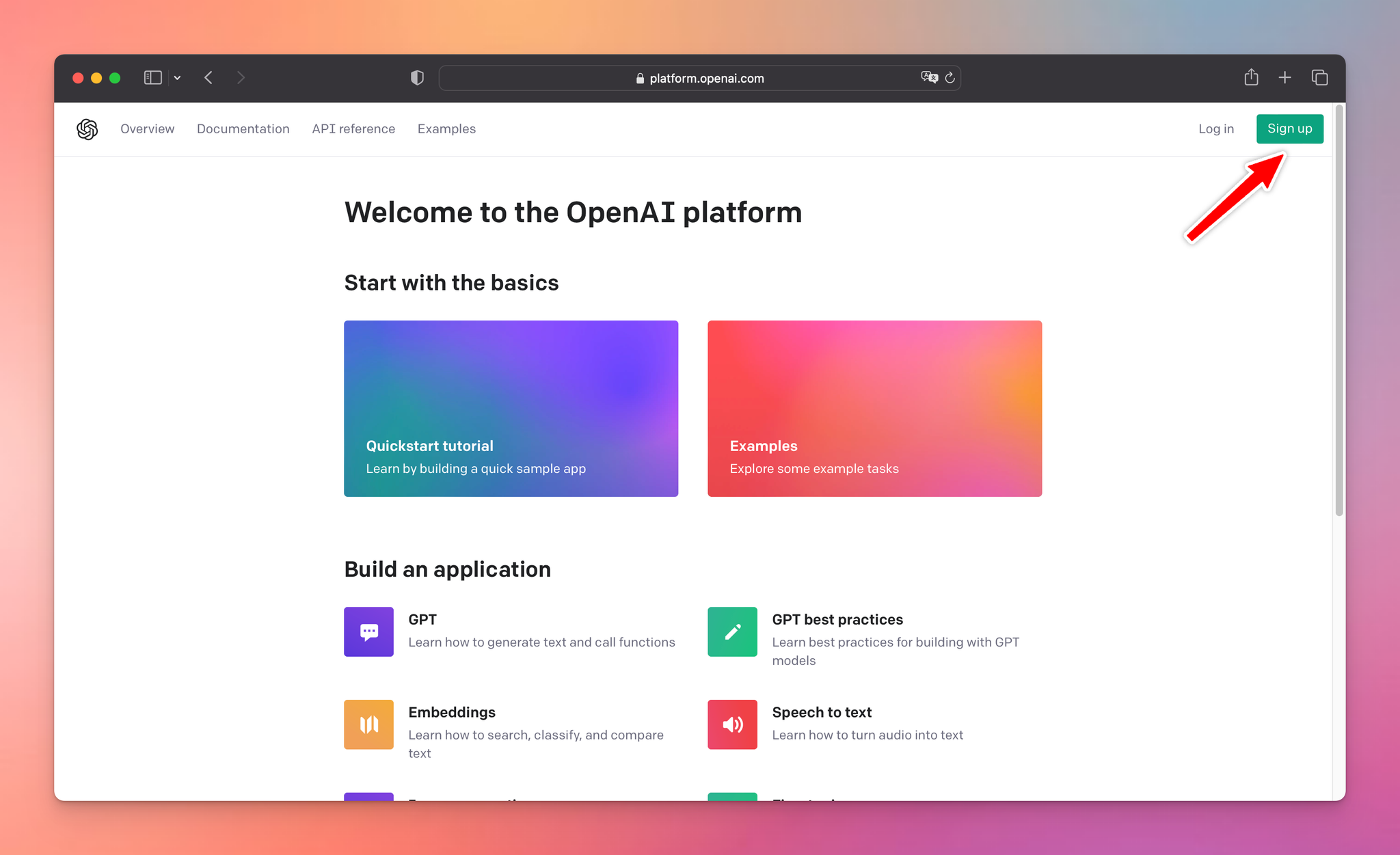
If you don't already have an OpenAI account, first you need to go to <https://platform.openai.com/> and click Sign Up.

<figure><img src="https://image-forwarder.notaku.so/aHR0cHM6Ly93d3cubm90aW9uLnNvL2ltYWdlL2h0dHBzJTNBJTJGJTJGcHJvZC1maWxlcy1zZWN1cmUuczMudXMtd2VzdC0yLmFtYXpvbmF3cy5jb20lMkY4N2NmOTdjZS05OTQ2LTRjM2QtYTdlMC1hNzkxZWVhMmE0ZTIlMkZiZjUwMmM2Zi1mNjI5LTRhYzMtYTQxOC1iMDc4ZTE1ZWQ2MDklMkZVbnRpdGxlZC5wbmc_dGFibGU9YmxvY2smc3BhY2VJZD04N2NmOTdjZS05OTQ2LTRjM2QtYTdlMC1hNzkxZWVhMmE0ZTImaWQ9M2IyZGE4Y2QtOGY0Yy00OGEzLWFjMWQtMTg0ZWIzZDIzMDIwJmNhY2hlPXYyJndpZHRoPTI0MDA=" alt="Image without caption"><figcaption></figcaption></figure>

### 2. Log in and navigate to the API section <a href="#b7ac2063e55a4ceb8e6c83f92a55c1f0" id="b7ac2063e55a4ceb8e6c83f92a55c1f0"></a>

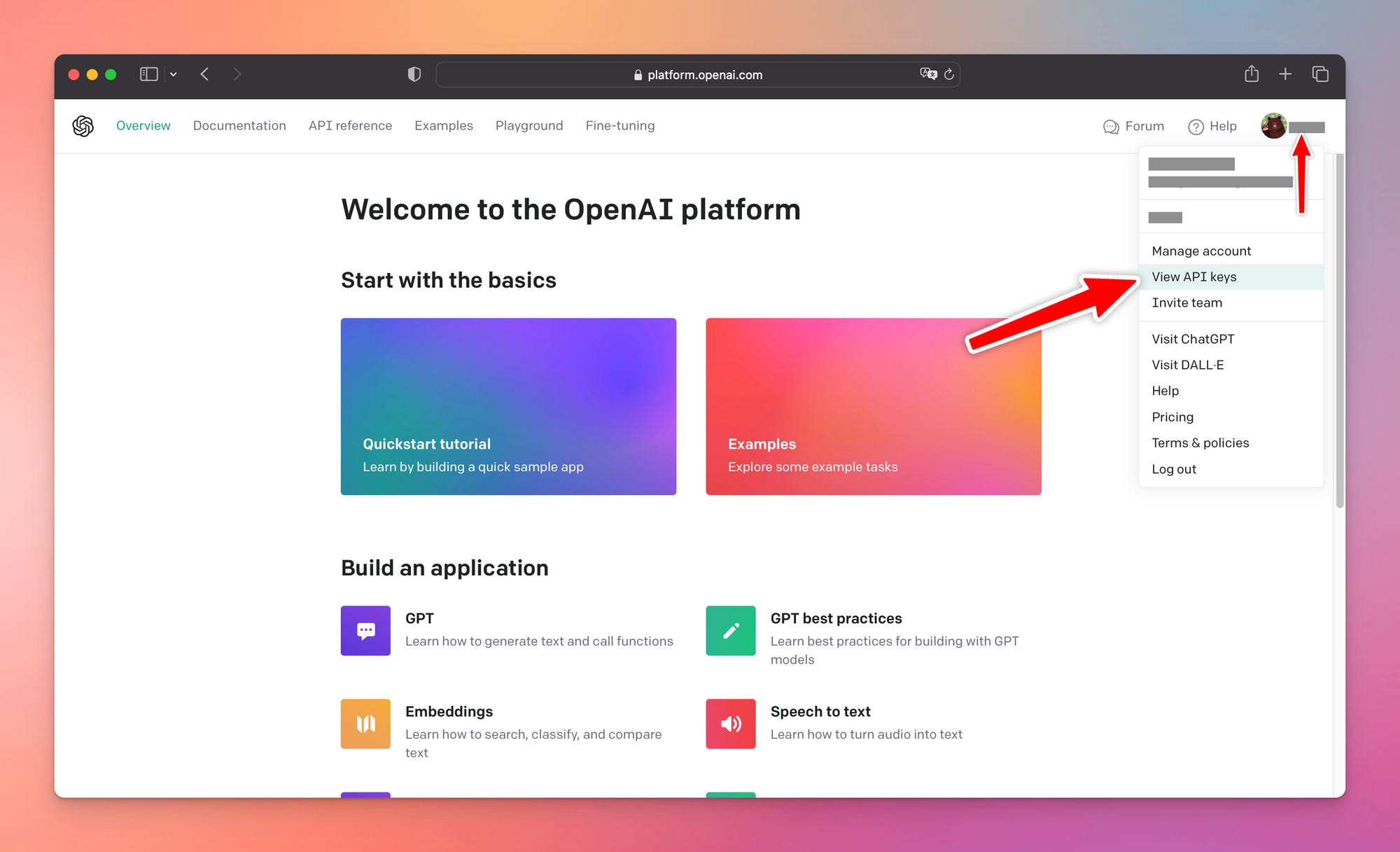
‍After successfully signing up / logging in, from the top right corner of your screen, you'll see an icon with your account name. Click it to open the dropdown menu then click "View API keys".

<figure><img src="https://image-forwarder.notaku.so/aHR0cHM6Ly93d3cubm90aW9uLnNvL2ltYWdlL2h0dHBzJTNBJTJGJTJGcHJvZC1maWxlcy1zZWN1cmUuczMudXMtd2VzdC0yLmFtYXpvbmF3cy5jb20lMkY4N2NmOTdjZS05OTQ2LTRjM2QtYTdlMC1hNzkxZWVhMmE0ZTIlMkY1NWJhOTAxYi04NTI0LTQ1Y2EtOTQwMS04NTJkNDBkYTgwYjAlMkZVbnRpdGxlZC5wbmc_dGFibGU9YmxvY2smc3BhY2VJZD04N2NmOTdjZS05OTQ2LTRjM2QtYTdlMC1hNzkxZWVhMmE0ZTImaWQ9NTNkMjQ3YmMtYTI2OC00NzgwLWI0MWItNTUzYmZkZmExNzI0JmNhY2hlPXYyJndpZHRoPTI0MDA=" alt="Image without caption"><figcaption></figcaption></figure>

### 3. Generate a new API key <a href="#id-24e4d34644224dd19246534a02ab98c2" id="id-24e4d34644224dd19246534a02ab98c2"></a>

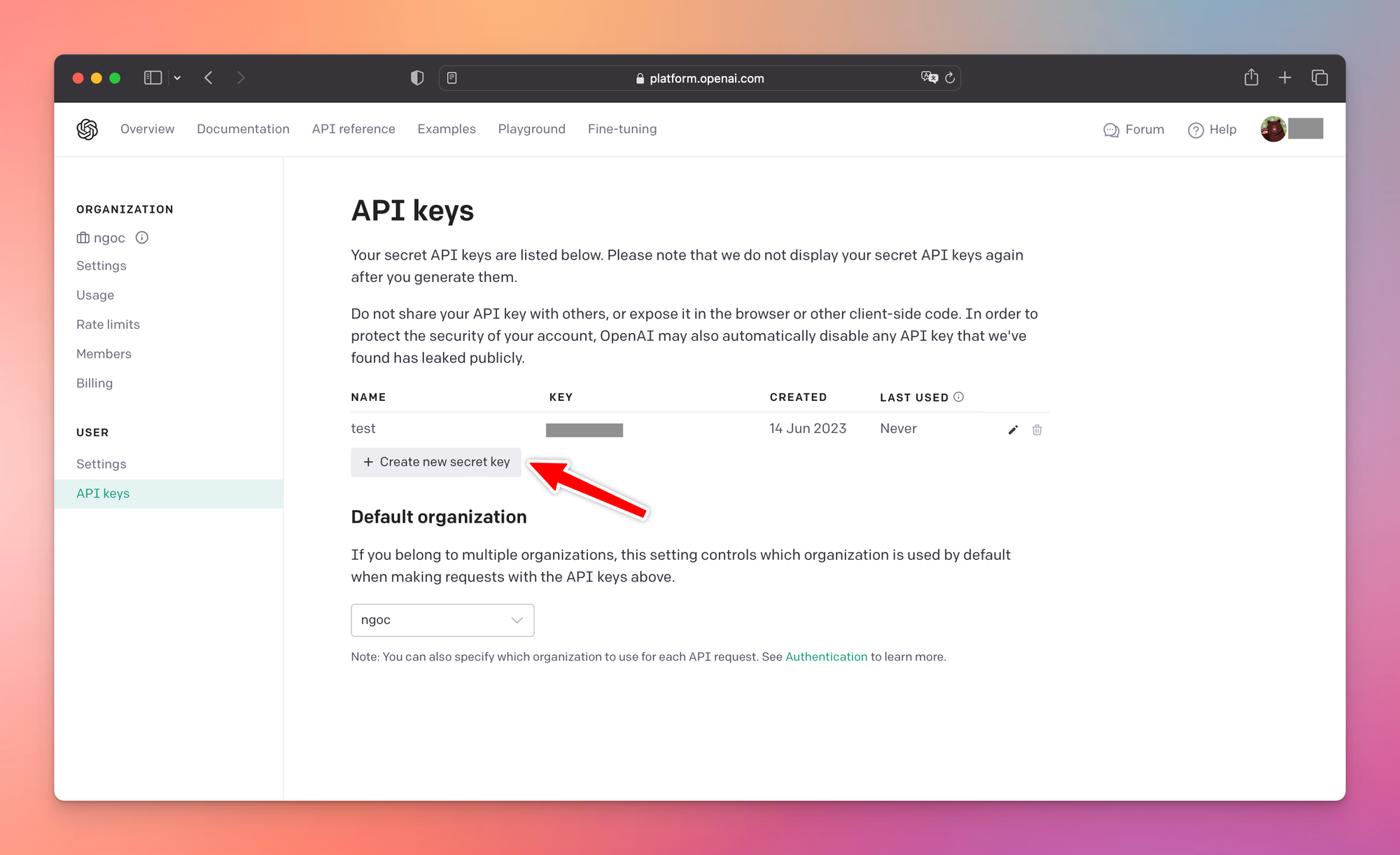
‍Now you're in the API keys section, you should see a button "Create new secret key". Click on that button to generate a new API key.

<figure><img src="https://image-forwarder.notaku.so/aHR0cHM6Ly93d3cubm90aW9uLnNvL2ltYWdlL2h0dHBzJTNBJTJGJTJGcHJvZC1maWxlcy1zZWN1cmUuczMudXMtd2VzdC0yLmFtYXpvbmF3cy5jb20lMkY4N2NmOTdjZS05OTQ2LTRjM2QtYTdlMC1hNzkxZWVhMmE0ZTIlMkYwMzNhMTdiNy1jY2M5LTRjZjQtYWY3MS0xZWI0MzNiNDQzNWQlMkZVbnRpdGxlZC5wbmc_dGFibGU9YmxvY2smc3BhY2VJZD04N2NmOTdjZS05OTQ2LTRjM2QtYTdlMC1hNzkxZWVhMmE0ZTImaWQ9YTc2OGRiNGUtYTFhYy00N2JhLTg4YzktN2Y4NDc5NGZkMDQzJmNhY2hlPXYyJndpZHRoPTI0MDA=" alt="Image without caption"><figcaption></figcaption></figure>

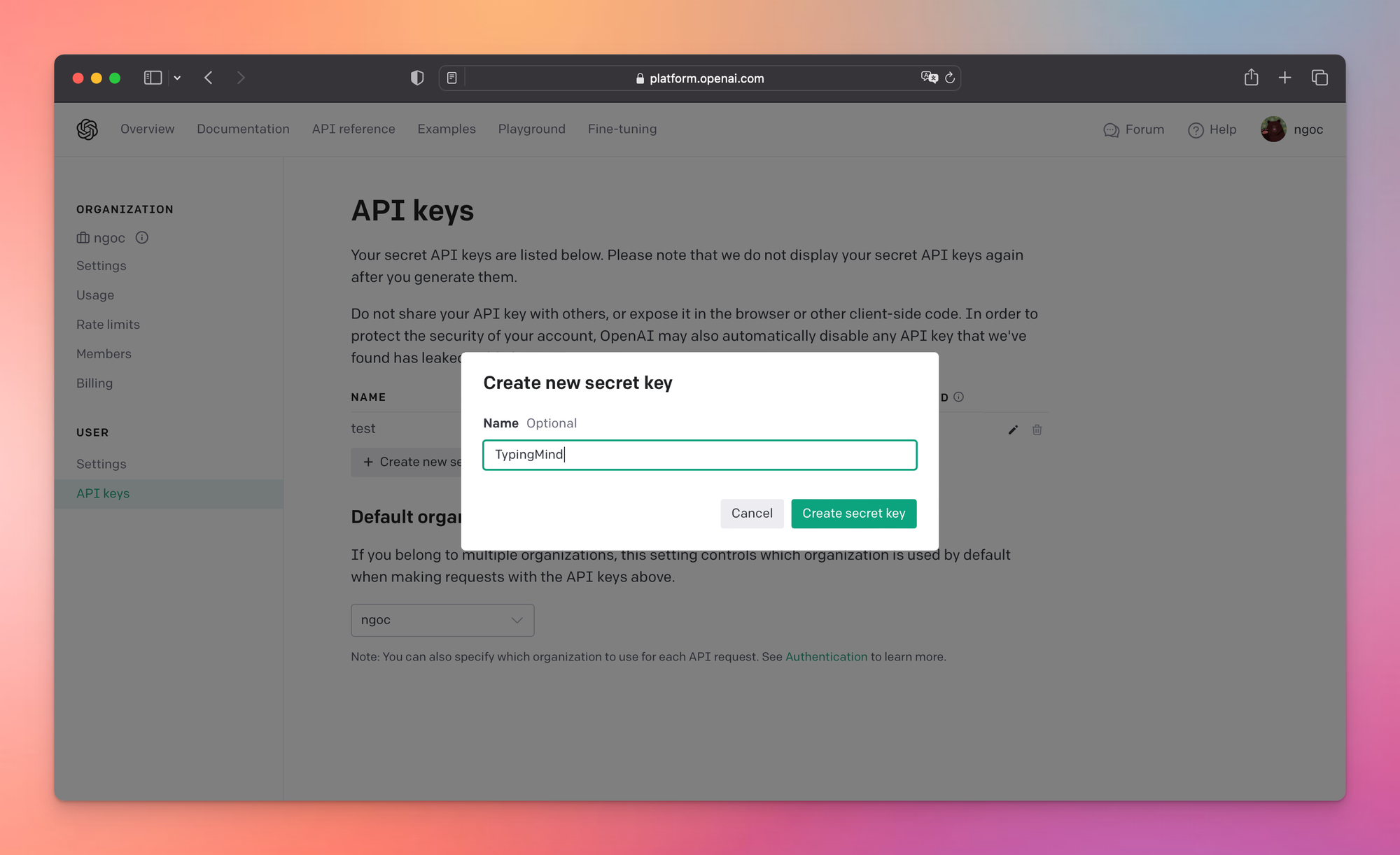
Name your secret API key and click the "Create secret key" button.

<figure><img src="https://image-forwarder.notaku.so/aHR0cHM6Ly93d3cubm90aW9uLnNvL2ltYWdlL2h0dHBzJTNBJTJGJTJGcHJvZC1maWxlcy1zZWN1cmUuczMudXMtd2VzdC0yLmFtYXpvbmF3cy5jb20lMkY4N2NmOTdjZS05OTQ2LTRjM2QtYTdlMC1hNzkxZWVhMmE0ZTIlMkZlZDBmYjM2NS00N2UzLTQ3NzMtYTdiZS1mMGYzODhiMjU1YjAlMkZVbnRpdGxlZC5wbmc_dGFibGU9YmxvY2smc3BhY2VJZD04N2NmOTdjZS05OTQ2LTRjM2QtYTdlMC1hNzkxZWVhMmE0ZTImaWQ9YWQ5MDEwZWQtZmMxNS00NjFkLWIyNWYtNmMxYjFkMDcyZmQ3JmNhY2hlPXYyJndpZHRoPTI0MDA=" alt="Image without caption"><figcaption></figcaption></figure>

### 4. Save your API key <a href="#id-66bfd575e33f48cd83b081594dad8a91" id="id-66bfd575e33f48cd83b081594dad8a91"></a>

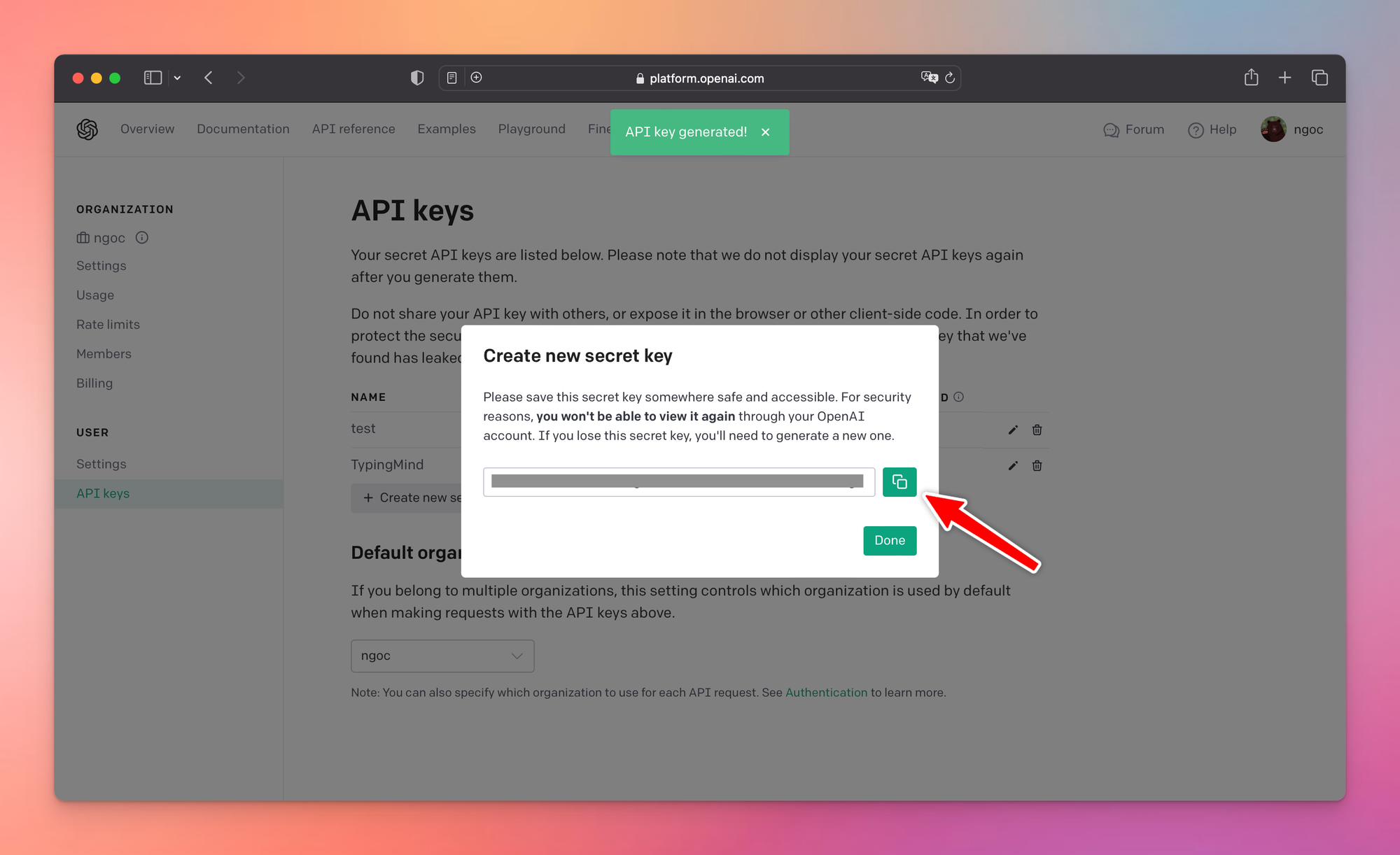
You will see your secret key that has been generated. Make sure to copy your secret key and save it somewhere secure, as you won't be able to retrieve it again for security reasons. You'll need this key to authenticate AIChatOne with OpenAI's services.

<figure><img src="https://image-forwarder.notaku.so/aHR0cHM6Ly93d3cubm90aW9uLnNvL2ltYWdlL2h0dHBzJTNBJTJGJTJGcHJvZC1maWxlcy1zZWN1cmUuczMudXMtd2VzdC0yLmFtYXpvbmF3cy5jb20lMkY4N2NmOTdjZS05OTQ2LTRjM2QtYTdlMC1hNzkxZWVhMmE0ZTIlMkYxZmRiMDJjOC04Y2MwLTRiMmYtYjZiMC0yMGE1ZTFjMmRiYjIlMkZVbnRpdGxlZC5wbmc_dGFibGU9YmxvY2smc3BhY2VJZD04N2NmOTdjZS05OTQ2LTRjM2QtYTdlMC1hNzkxZWVhMmE0ZTImaWQ9M2RhNjc0NWQtNTYzMy00OTY0LWJlZGItYTdlMjBiZDhkMWEzJmNhY2hlPXYyJndpZHRoPTI0MDA=" alt="Image without caption"><figcaption></figcaption></figure>

### 5. Set up pre-paid billing <a href="#id-6c5a578b9d154d96ac5655c56fa84d3b" id="id-6c5a578b9d154d96ac5655c56fa84d3b"></a>

OpenAI charges for use of its API on a usage basis, so, if you haven't set up a payment method for pre-paid billing yet, you'll need to do so. Otherwise, the API Key you just created won't work.

<figure><img src="https://image-forwarder.notaku.so/aHR0cHM6Ly93d3cubm90aW9uLnNvL2ltYWdlL2h0dHBzJTNBJTJGJTJGcHJvZC1maWxlcy1zZWN1cmUuczMudXMtd2VzdC0yLmFtYXpvbmF3cy5jb20lMkY4N2NmOTdjZS05OTQ2LTRjM2QtYTdlMC1hNzkxZWVhMmE0ZTIlMkY5NWM5NTQ1ZS1iNjEzLTRlZjAtYTlmYy0wNDI0NzI3ZTk0MGIlMkZVbnRpdGxlZC5wbmc_dGFibGU9YmxvY2smc3BhY2VJZD04N2NmOTdjZS05OTQ2LTRjM2QtYTdlMC1hNzkxZWVhMmE0ZTImaWQ9OWRlZDAwNDktMDY0Mi00YzBjLTlmMGEtZjljNDBiZGFkMTg2JmNhY2hlPXYyJndpZHRoPTI0MDA=" alt="Image without caption"><figcaption></figcaption></figure>

### 6. Enter your API key to AIChatOne <a href="#id-05d5e4ef3cb74133b03653f97e7e47af" id="id-05d5e4ef3cb74133b03653f97e7e47af"></a>

Open AIChatOne, input the copied API key and start your first conversation with AIChatOne!


# GPT-4 Access

As you may know, accessing to the GPT-4 model on AIChatOne is not granted automatically. To use this model, you must first be given access to the GPT-4 API by OpenAI. Now it’s much easier to access GPT-4 via API, all you need is a prepaid billing account.Let’s check what it is and how to set it up!💡

> Please note that the GPT-4 access in ChatGPT Plus is completely different from the GPT-4 access via API - which is currently being used on AIChatOne.

## 4 steps to setup a Prepaid Billing account <a href="#id-98db6d74002d42fabdbccd6f226809b8" id="id-98db6d74002d42fabdbccd6f226809b8"></a>

Here are 4 easy steps to set it up:

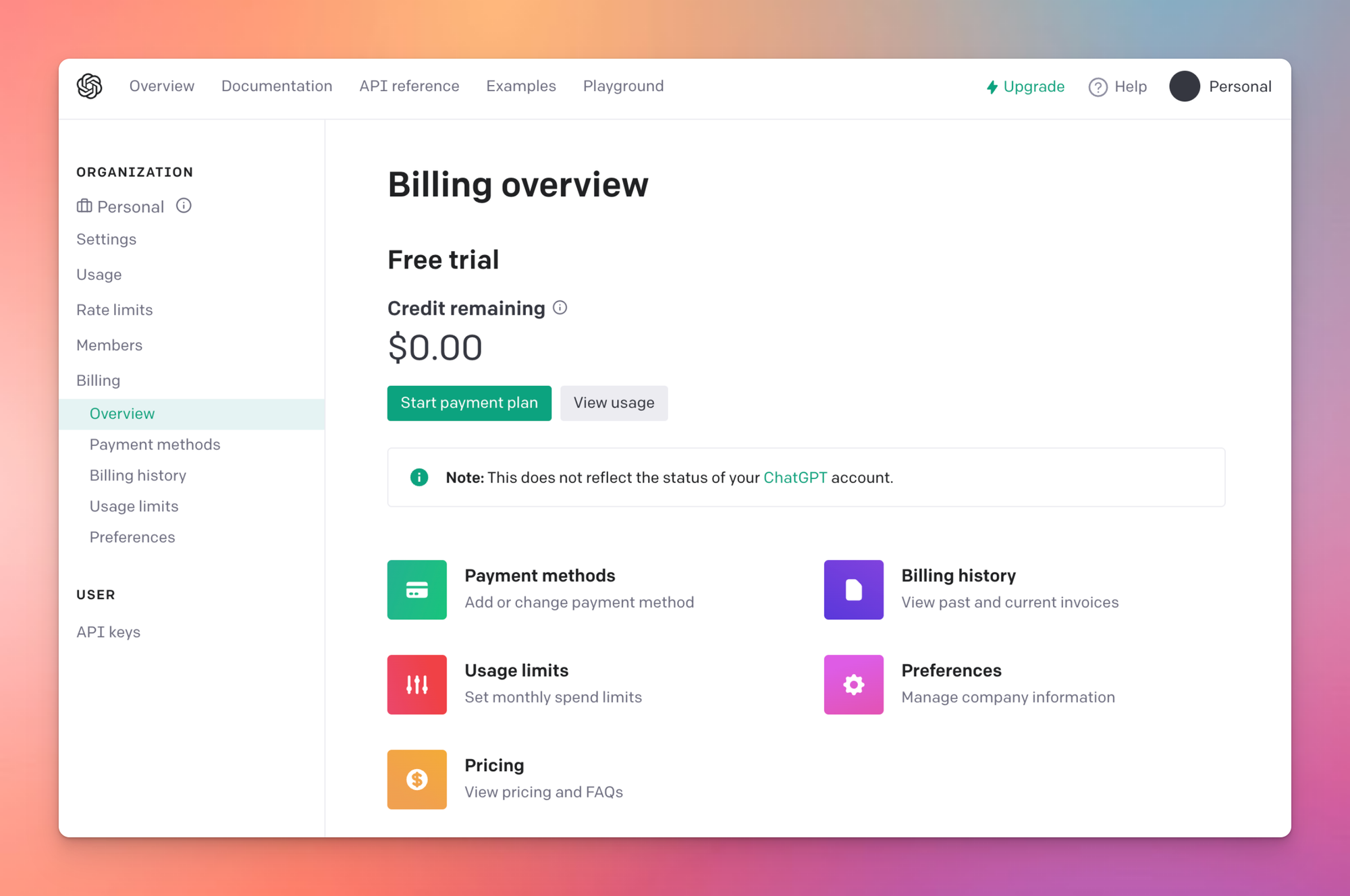
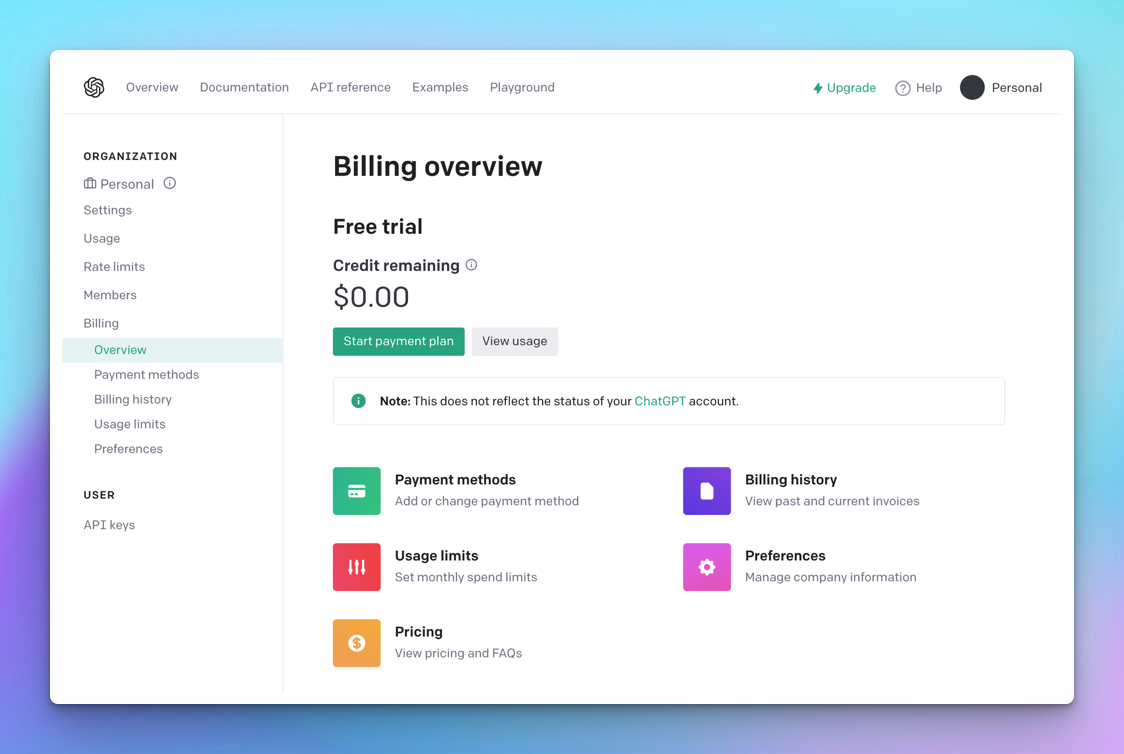
1、Go to your [billing overview](https://platform.openai.com/account/billing) in your account settings

<figure><img src="https://image-forwarder.notaku.so/aHR0cHM6Ly93d3cubm90aW9uLnNvL2ltYWdlL2h0dHBzJTNBJTJGJTJGaW1hZ2UtZm9yd2FyZGVyLm5vdGFrdS5zbyUyRmFIUjBjSE02THk5M2QzY3VibTkwYVc5dUxuTnZMMmx0WVdkbEwyaDBkSEJ6SlROQkpUSkdKVEpHY0hKdlpDMW1hV3hsY3kxelpXTjFjbVV1Y3pNdWRYTXRkMlZ6ZEMweUxtRnRZWHB2Ym1GM2N5NWpiMjBsTWtZNE4yTm1PVGRqWlMwNU9UUTJMVFJqTTJRdFlUZGxNQzFoTnpreFpXVmhNbUUwWlRJbE1rWmpNVGRqWkdSaFpDMHlZemd3TFRRMU1Ua3RPR1F3WkMxbVlqRXdOMlkwWmpsak1tVWxNa1pWYm5ScGRHeGxaQzV3Ym1jX2RHRmliR1U5WW14dlkyc21jM0JoWTJWSlpEMDROMk5tT1RkalpTMDVPVFEyTFRSak0yUXRZVGRsTUMxaE56a3haV1ZoTW1FMFpUSW1hV1E5TVRWbU5HSm1aRGN0TTJGak5DMDBPR1ppTFRrek1XSXROamt6TVdZME5qTTJabVpqSm1OaFkyaGxQWFl5Sm5kcFpIUm9QVEl5TkRnJTNEP3RhYmxlPWJsb2NrJnNwYWNlSWQ9ODdjZjk3Y2UtOTk0Ni00YzNkLWE3ZTAtYTc5MWVlYTJhNGUyJmlkPWJiOGFjMDIxLThiMWItNDcxNC1iYTliLWY4NDFmZmQ0Zjg3ZSZjYWNoZT12MiZ3aWR0aD0xNjAw" alt="Image without caption"><figcaption></figcaption></figure>

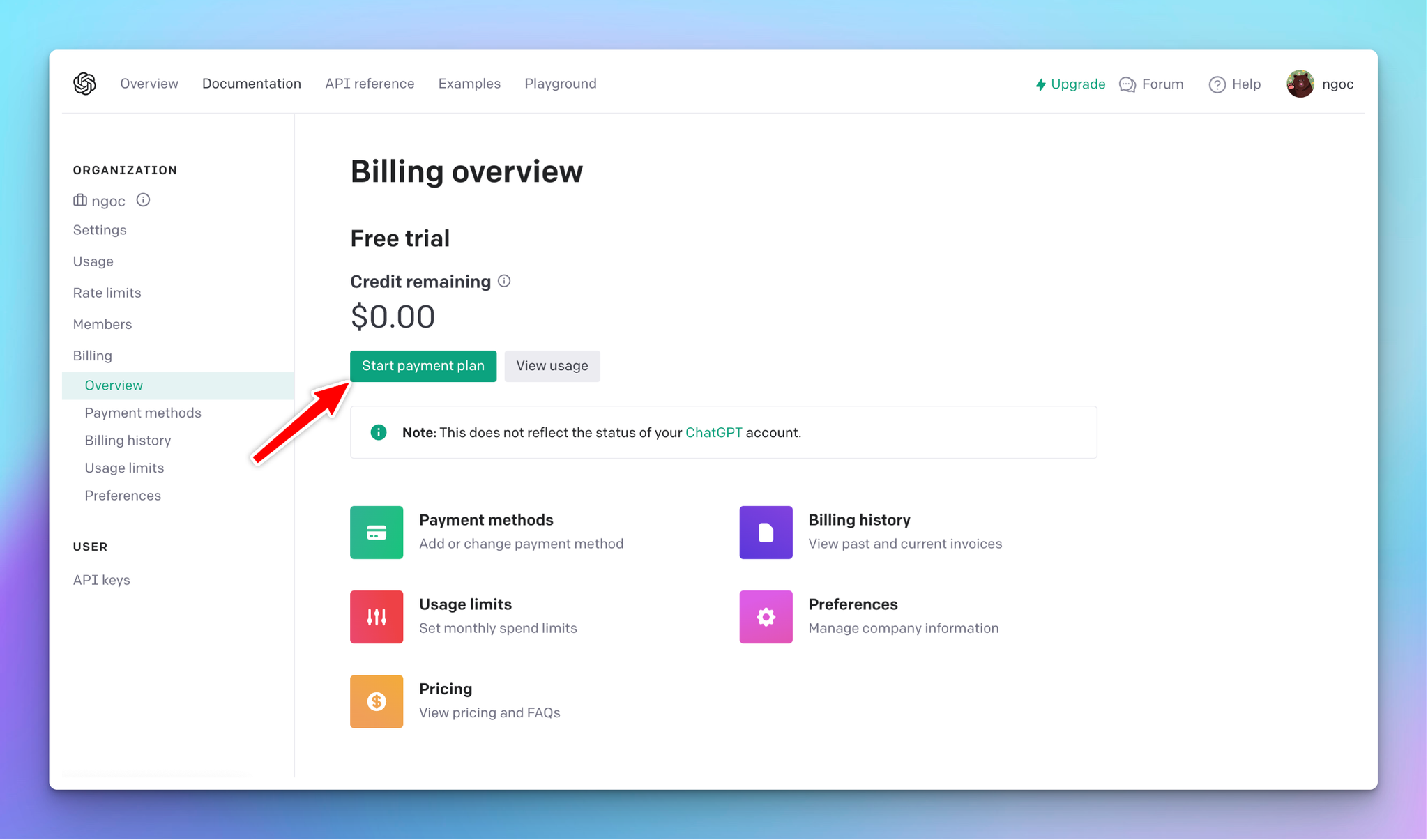
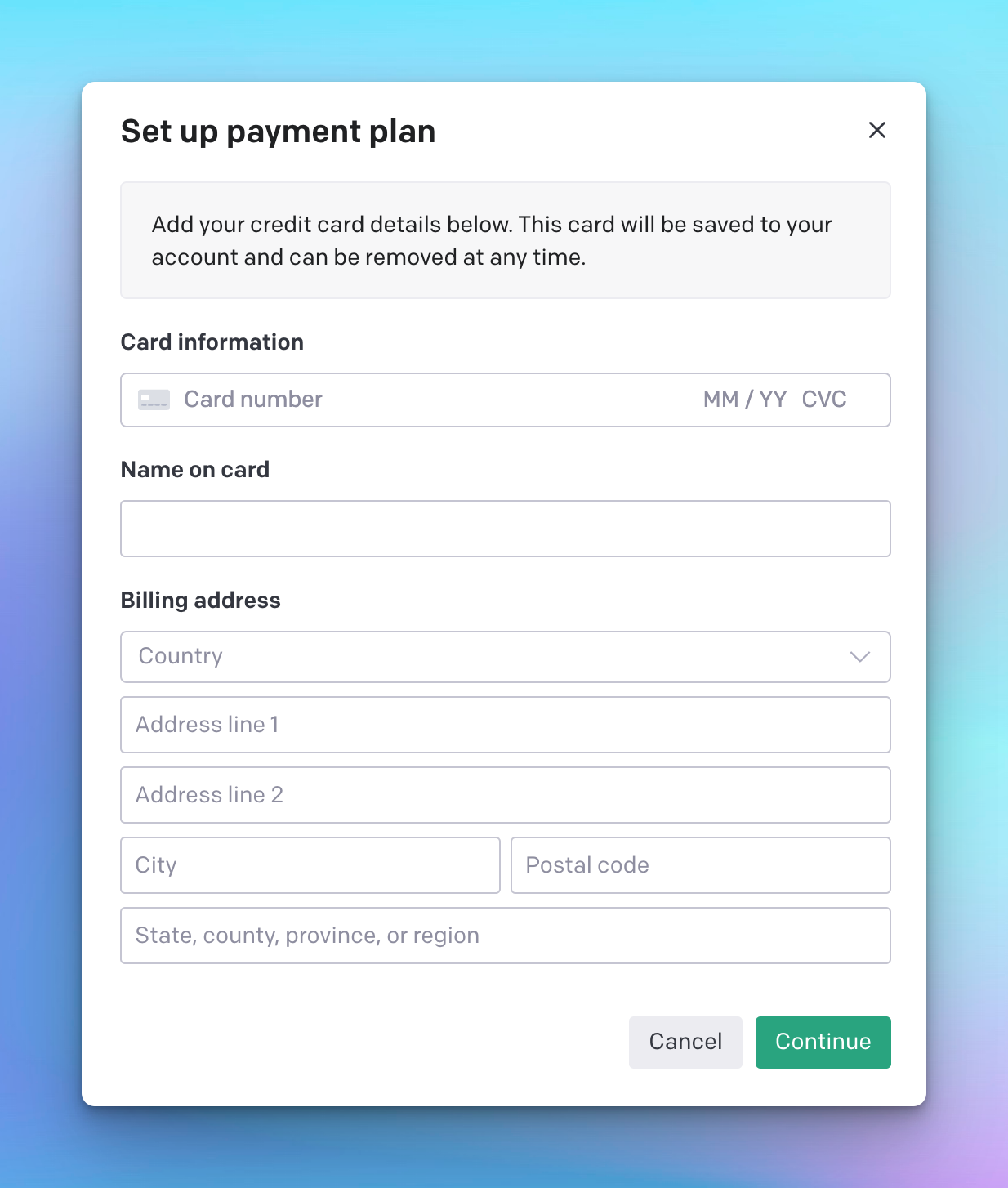
2、Click "Start payment plan" and add your billing details

<figure><img src="https://image-forwarder.notaku.so/aHR0cHM6Ly93d3cubm90aW9uLnNvL2ltYWdlL2h0dHBzJTNBJTJGJTJGaW1hZ2UtZm9yd2FyZGVyLm5vdGFrdS5zbyUyRmFIUjBjSE02THk5M2QzY3VibTkwYVc5dUxuTnZMMmx0WVdkbEwyaDBkSEJ6SlROQkpUSkdKVEpHY0hKdlpDMW1hV3hsY3kxelpXTjFjbVV1Y3pNdWRYTXRkMlZ6ZEMweUxtRnRZWHB2Ym1GM2N5NWpiMjBsTWtZNE4yTm1PVGRqWlMwNU9UUTJMVFJqTTJRdFlUZGxNQzFoTnpreFpXVmhNbUUwWlRJbE1rWm1aalV5WkRWaU5pMWhaR1pqTFRReVpETXRPRGt3WXkwek16YzVZek01TWpkbU5tTWxNa1pWYm5ScGRHeGxaQzV3Ym1jX2RHRmliR1U5WW14dlkyc21jM0JoWTJWSlpEMDROMk5tT1RkalpTMDVPVFEyTFRSak0yUXRZVGRsTUMxaE56a3haV1ZoTW1FMFpUSW1hV1E5TkROaFl6Z3lPRGd0TWprNFppMDBPRFkwTFRsa05qVXRaVEl5TWpRNFpXRmpObVExSm1OaFkyaGxQWFl5Sm5kcFpIUm9QVEkwTURBJTNEP3RhYmxlPWJsb2NrJnNwYWNlSWQ9ODdjZjk3Y2UtOTk0Ni00YzNkLWE3ZTAtYTc5MWVlYTJhNGUyJmlkPTI1MjM5NDEyLTU0OGItNDEwNi04MTZkLTY4OGY1MjM4YTI2NiZjYWNoZT12MiZ3aWR0aD0xNjAw" alt="Image without caption"><figcaption></figcaption></figure>

<figure><img src="https://image-forwarder.notaku.so/aHR0cHM6Ly93d3cubm90aW9uLnNvL2ltYWdlL2h0dHBzJTNBJTJGJTJGaW1hZ2UtZm9yd2FyZGVyLm5vdGFrdS5zbyUyRmFIUjBjSE02THk5M2QzY3VibTkwYVc5dUxuTnZMMmx0WVdkbEwyaDBkSEJ6SlROQkpUSkdKVEpHY0hKdlpDMW1hV3hsY3kxelpXTjFjbVV1Y3pNdWRYTXRkMlZ6ZEMweUxtRnRZWHB2Ym1GM2N5NWpiMjBsTWtZNE4yTm1PVGRqWlMwNU9UUTJMVFJqTTJRdFlUZGxNQzFoTnpreFpXVmhNbUUwWlRJbE1rWXhaR1ZqTTJNellpMDVaalF5TFRRME1UZ3RPR05rWmkwM09ETmxaakJrTXpsbE5UY2xNa1pWYm5ScGRHeGxaQzV3Ym1jX2RHRmliR1U5WW14dlkyc21jM0JoWTJWSlpEMDROMk5tT1RkalpTMDVPVFEyTFRSak0yUXRZVGRsTUMxaE56a3haV1ZoTW1FMFpUSW1hV1E5TmpreE1EZzNNMlF0TlRnMVl5MDBZV1V4TFRneE5qSXRNRGxqWVRnNE5HRXhNRFprSm1OaFkyaGxQWFl5Sm5kcFpIUm9QVEkwTURBJTNEP3RhYmxlPWJsb2NrJnNwYWNlSWQ9ODdjZjk3Y2UtOTk0Ni00YzNkLWE3ZTAtYTc5MWVlYTJhNGUyJmlkPWM0YTIzZGE4LTk4NzgtNDc3Zi1hMjIyLTdhMjA1NmYxYWFhMCZjYWNoZT12MiZ3aWR0aD0xNjAw" alt="Image without caption"><figcaption></figcaption></figure>

3、Choose the initial amount of credits you want to purchase. The minimum purchase is $5.

<figure><img src="/files/xviwffeUMWCN0QSvRVca" alt=""><figcaption></figcaption></figure>

4、Confirm and purchase your initial amount of credits.

<figure><img src="/files/o4k3ffWnFkq9kz971haM" alt=""><figcaption></figcaption></figure>

Once you have done purchasing credits, OpenAI will grant you access to the GPT-4 API immediately.You can also check out this article from OpenAI for more details of [prepaid billing](https://help.openai.com/en/articles/8264644-what-is-prepaid-billing).

## Use GPT-4 on AIChatOne <a href="#id-48258ff52ea34f5db9be4a52086ece7a" id="id-48258ff52ea34f5db9be4a52086ece7a"></a>

You can then copy your [API key](https://platform.openai.com/account/api-keys) and input it to AIChatOne:

After that, switch the chat model to GPT-4 and interact with this model as normal:

> 💡The GPT-4-32K API isn’t available for everyone yet. In case you want to use this model, you can use it via [OpenRouter](https://docs.typingmind.com/other-resources/how-tos/how-to-use-open-router-models-on-typing-mind).Hope this article has provided you with a clear understanding of how to access GPT-4 on AIChatOne. Now let’s explore its capabilities in optimizing your workflow!


# Use Azure OpenAI

You can use Azure OpenAI on AIChatOne as follow:

### Get an Azure OpenAI account <a href="#id-0a0a776941b04e0f92defa9516a35a69" id="id-0a0a776941b04e0f92defa9516a35a69"></a>

If you haven’t already, you must register for an Azure OpenAI Account. You can create one here: <https://oai.azure.com/>

### Get a Deployment, Endpoint, and API Key <a href="#id-43538ce08d434f1fb14bb9a25af88cc3" id="id-43538ce08d434f1fb14bb9a25af88cc3"></a>

Go to “Deployments” and create a new deployment with a model of your choice.


# Use Poe

> Why use poe? It has some free quota every day to use ChatGPT, Claude

You can use Poe on AIChatOne as follow:

### Get an Poe account <a href="#id-0a0a776941b04e0f92defa9516a35a69" id="id-0a0a776941b04e0f92defa9516a35a69"></a>

If you haven’t already, you must register for an Poe Account. You can create one here: <https://poe.com/>

### Login <a href="#id-43538ce08d434f1fb14bb9a25af88cc3" id="id-43538ce08d434f1fb14bb9a25af88cc3"></a>

Login to Poe and keep logged in.


# Use OpenRouter

> Why use OpenRouter? If ChatGPT is not available in your country, OpenRouter will be an option, but not only, check <https://openrouter.ai/> for more information

Open Router ([openrouter.ai](https://openrouter.ai/)) is a new service that gives you access to LLM models that you normally won’t have access to (GPT-4 32K, Google PaLM, Claude, etc.)

Here is how to use Open Router models on AIChatOne.

### 1. Create an account <a href="#id-1526c93422f9404c9273d7090cd10b18" id="id-1526c93422f9404c9273d7090cd10b18"></a>

Go to [openrouter.ai](https://openrouter.ai/) and create an account. Open Router allows you to use some model for free, or you can buy more credits to use the premium models.

### 2. Create an API key <a href="#id-3f2d1c434839491aa5db0bd5b58759f3" id="id-3f2d1c434839491aa5db0bd5b58759f3"></a>

After signing up, go to <https://openrouter.ai/keys> to create an API key.Enter “Any words” to the name field. Leave the “Credit limit” empty to set the limit to unlimited.

3\. Add Credits

Go to Account > Settings, scroll down to the credit section to Add Credits so you can use the generated API keys.

### 4. Enter your API key to AIChatOne <a href="#id-82dc07ad8292418993522f30fdcfeeae" id="id-82dc07ad8292418993522f30fdcfeeae"></a>

Open AIChatOne, input the copied API key and start your first conversation with AIChatOne!


# Context length limit

> LLMs evolve rapidly and you should get the latest models and limitations from official sources

As you may know, each chat model has a different context length limit:

* GPT-3.5: 4,096 tokens
* GPT-3.5-16k: 16,385 tokens
* GPT-4: 8,192 tokens
* GPT-4-32K: 32,768 tokens
* Claude: 100,000 tokens


# Parameter Settings


# Parameter settings

GPT models have important parameters that you can adjust to fine-tune the model's responses. Let’s check out some key parameters that you can adjust on AIChatOne.

## 1. Temperature (0 - 2) <a href="#id-89996a1d89264ff4b7aca30f2b4d562a" id="id-89996a1d89264ff4b7aca30f2b4d562a"></a>

The Temperature parameter is a setting in ChatGPT that you can use to adjust the creativity of the model's responses. It acts as a "knob" to control how random and creative the output will be. Here's how it works:

* High value (close to 2): the AI's responses are more diverse and creative. It's more likely to come up with unusual or unexpected responses.
* Low value (close to 0): the AI's responses are more conservative and predictable. It will stick closer to the most likely response according to what it has learned during its training.

A temperature between 0.7 and 0.9 allows for a good balance between creativity and relevance. You can adjust this to see what works best for your specific use case.

## 2. Top P (0-1) <a href="#id-0aa1f6b46fb947a5a704c1c3afacee37" id="id-0aa1f6b46fb947a5a704c1c3afacee37"></a>

Top P is also used to control the randomness of the AI's outputs, also known as nucleus sampling.

Basically, when the AI model is deciding what word to say next, it calculates a score for each possible word. It then uses these scores to decide which word to choose. Top P influences this selection process.

When you set a value for Top P, you're telling the model to restrict its selection to the particular percentage of the highest-scoring words or choices.

> For example, if Top P is set to 0.5, the model only considers the top 50% scored words for output generation.

* Lower values (closer to 0): the model only looks at the very most likely next words. This makes its responses more predictable, but they might also be less diverse and interesting.
* Higher values(closer to 1): the chat model will a larger pool of possible next words, even ones that aren't the most likely. This makes its responses more varied and creative, but they might also be less logical or coherent.

> Note: The settings of these parameters can drastically affect the output of the model. It's important to experiment with different settings to find the ones that best meet your needs.

## 3. Frequency penalty (0-2) <a href="#cdef5b60137241e8a7cbff74b46ffa21" id="cdef5b60137241e8a7cbff74b46ffa21"></a>

This parameter used to discourage the model from repeating the same words or phrases too frequently within the generated text.

* Low value (closer to 0): the model is allowed to use common words or phrases more frequently.
* High value (closer to 2) discourages the model from using common words or phrases - the output will be less predictable and potentially more creative, as the model is encouraged to use a wider and more diverse vocabulary.

> One use case for a higher frequency penalty could be in creative writing, where you want more novel and less clichéd phrases.

## 4. Presence penalty (0-2) <a href="#id-91588bbaffe54199957dfccdc76a94db" id="id-91588bbaffe54199957dfccdc76a94db"></a>

The Presence penalty parameter encourages the model to include a diverse range of tokens in the generated text. This influences if a certain topic or idea comes up again in the conversation.

* Low value (closer to 0): the chat model will stick more closely to the concepts in the input and is less likely to generate new ideas.
* High value (closer to 2): the chat model is more likely to generate new concepts that were not in the input.


# Suggested parameter combinations

Here are some suggested combination parameters for specific use cases that might be helpful.

### Customer support <a href="#id-2f271003e2024ee49d5b8d39012e8fae" id="id-2f271003e2024ee49d5b8d39012e8fae"></a>

`temperature: 0.2`

`top_p: 0.5`

`presence penalty: 0`

`frequency penalty: 0.6`

In customer support, accurate and targeted responses are vital.

* Lower temperature and top\_p values ensure that the AI's responses are precise and on point.
* Higher frequency penalty prevents the overuse of certain phrases.

### Creative writing <a href="#ed8e7e994c7648ff844b4f81387a36c0" id="ed8e7e994c7648ff844b4f81387a36c0"></a>

`temperature: 0.9`

`top_p: 0.9`

`presence Penalty: 0.6`

`frequency Penalty: 0`

Creative writing requires imaginative and original content.

* High temperature and top\_p value encourages diverse and unpredictable outputs.
* High presence penalty promotes novelty in the text

### Academic writing <a href="#id-51fbcba3663b4511bba4011c32133b98" id="id-51fbcba3663b4511bba4011c32133b98"></a>

`temperature: 0.2`

`top_p: 0.5`

`presence Penalty: 0.1`

`frequency Penalty: 0.6`

Academic writing should be accurate, structured, and stay on the topic.

* Low temperature and top\_p values result in focused and reliable outputs.
* Low presence penalty keeps the model on topic.

### Social media post <a href="#id-9fe7e240cec241019ceaf8ab7663c896" id="id-9fe7e240cec241019ceaf8ab7663c896"></a>

`temperature: 0.8`

`top_p: 0.9`

`presence Penalty: 0`

`frequency Penalty: 0.3`

Social media posts should be engaging, casual, and often use recurring themes or hashtags.

* High temperature and top\_p value encourage creative and diverse outputs.
* Low presence and frequency penalty values allow for the reuse of popular words, phrases, or topics that are common in social media trends.

### Technical documentation <a href="#cf4c5c37ebef4252bf6ffa5f83defa3e" id="cf4c5c37ebef4252bf6ffa5f83defa3e"></a>

`temperature: 0.3`

`top_p: 0.5`

`presence Penalty: 0.1`

`frequency Penalty: 0.6`

Technical documentation needs to be clear, concise, and focused.

* Lower temperature and top\_p ensure deterministic and consistent output.
* Low presence penalty helps the model stick to the specific technical topic.

### Product description <a href="#e0ccec2b342144cf95cc7f69dc07488a" id="e0ccec2b342144cf95cc7f69dc07488a"></a>

`temperature: 0.7`

`top_p: 0.9`

`presence Penalty: 0.1`

`frequency Penalty: 0.2`

Product descriptions should be engaging, creative, and use repetitive phrases for emphasis.

* Moderate temperature and high top\_p value allow for a balance of creative and focused outputs.
* Low presence penalty encourages sticking to the product's main features.


# Export / import data

You can easily export / import your data for manual backup.

## Export your data <a href="#id-10c9d79ea2cf4e279c29d12236b38fec" id="id-10c9d79ea2cf4e279c29d12236b38fec"></a>

Include chats, prompts, folders, AI characters, model settings, other settings.

The system will then generate a json file that will contain your data.

## Importing Your Data <a href="#bd11e34e430c48fca96aff56d5ad99a3" id="bd11e34e430c48fca96aff56d5ad99a3"></a>

Click “Import” and choose the json file to import


# Set Up System Message


# Initial system instruction

To set up initial system instruction on AIChatOne(a.k.a system message on ChatGPT):

* Go to Model Settings
* Navigate the Initial System Instruction section
* Input your instruction to guide the chat model behavior during the conversation.

## What is AIChatOne’s initial system instruction? <a href="#id-6d080aad8a454136a08d45326c1052db" id="id-6d080aad8a454136a08d45326c1052db"></a>

AIChatOne’s initial system instruction is the first message provided by you to the model in order to give the AI assistant a general rule or guideline to follow in the conversation. This could include instructions about the tone, style, or context in which the model should respond.

> For example, if the system instruction is to "Write in a style of Shakespeare", ChatGPT would provide responses in the style of this greatest writer for any of your inquiries.

The initial system instruction plays a crucial role in shaping the AI's responses and the overall flow of the chat.

## Formula to craft a good ChatGPT system instruction <a href="#id-6ce7ef8b191e45d68d10abfb07681b27" id="id-6ce7ef8b191e45d68d10abfb07681b27"></a>

While there is no one-size-fits-all formula, here are some guidelines to help you create an effective instruction:

1. Be clear about your purpose: clearly define the desired purpose and the intended outcomes for ChatGPT.
2. Provide context: offer specific and relevant background information to help ChatGPT understand the context

> Please note that the effectiveness of this instruction may depend on different factors. You don’t need to cover all of 5 above best practices in your initial instruction, it's essential to iterate many experiments and adapt the instruction to suit your goals.


# Your profile

Setting up your profile in AIChatOne allows the AI to deliver more personalized, relevant responses according to your specific interests and work context. Let’s check out how to set it up on AIChatOne!

## Set up your profile <a href="#b69a1928d4de488490738e2aa672c562" id="b69a1928d4de488490738e2aa672c562"></a>

Set up the Profile with your personal info such as your name, avatar, date of birth, job, interests, etc.

## Benefits of setting up your profile <a href="#id-8ebd3891af9d40a4ae729977a0519122" id="id-8ebd3891af9d40a4ae729977a0519122"></a>

* Personalization: by providing information about your interests and work, the AI model can deliver more personalized and contextually relevant responses.
* Understanding: with your work information, the AI can tailor its advice and suggestions to suit your professional context.


# Chat Management


# Organize chats

AIChatOne allows you to manage your chat history easily. An organized workspace will promote an enhanced productivity and streamline workflow. Here’s how you can organize the chats with AIChatOne:

## 1. Update the chat title <a href="#adfd79311f6c4804b9da69bf7be499cd" id="adfd79311f6c4804b9da69bf7be499cd"></a>

AIChatOne will automatically generate a title for each new conversation related to its content to help you keep track of them.However, you can easily customize this by clicking the “pen” icon next to each title on the left sidebar

## 2. Pin chats <a href="#id-655491a018804a588ca4120ad96d05e2" id="id-655491a018804a588ca4120ad96d05e2"></a>

You can pin important conversations so they always stay at the top of your chat list.To pin the chats, easily click the “star” icon next to each conversation on the left sidebar.

## 3. Add chats to folders <a href="#id-7c66882b2ac0440484f10b6ff4f6ae60" id="id-7c66882b2ac0440484f10b6ff4f6ae60"></a>

To keep your chats organized, you may want to add them to specific folders.

* First, create a new folder by clicking “folder icon" on the left sidebar.
* Name your folder
* You can then drag and drop any chat into the folder or select the chat and choose the option "Move" to move the a specific folder you want.

## 4. Bulk delete <a href="#id-0b862f81145f4e16a1763eb705d0e5f9" id="id-0b862f81145f4e16a1763eb705d0e5f9"></a>

Easily delete your chat history, even in bulk!

* Delete conversation one-by-one: click the “Trash icon” next to each conversation on the left sidebar to delete one by one.
* Delete chats in bulk: from the left sidebar, click the Dropdown icon > Select Chats > check the chats you want to delete or select all to quickly delete all the chat history.


# Share chats

Have a cool conversation and want to share it with your friends and your community? AIChatOne sharing feature allows you to share the entire conversation via different formats such as a unique link, markdown, pdf, html, etc.


# Prompt library

AIChatOne app allows you to build your own prompt collection so you can make use of them anytime.

* You can choose to add prompts from AIChatOne’s built-in prompts
* Or create your own prompts

> A prompt refers to a conversation starter or a task you provide to the model to guide its conversation

## Choose from Built-in Prompts <a href="#id-4424323bb0a642f781f54c9340e80dc6" id="id-4424323bb0a642f781f54c9340e80dc6"></a>

AIChatOne offers more than 160 pre-built prompts. Here’s how to add them to your library:

* Click “Prompt Library”
* Switch to “Community Prompts” tab
* “Add” prompts that you find most useful to your personal prompt list.

The prompt you've just added will now be visible under the “Your Prompts” tab

## Create Your Own Prompts <a href="#id-9e2011ab31a64667a844850c76922d3d" id="id-9e2011ab31a64667a844850c76922d3d"></a>

You can easily create your own prompt as follows:

* Open Prompt Library
* Click “Add Prompt” button
* Fill in the necessary details - your prompt title, description, actual prompt content, etc.

The prompts you create will also be displayed under the "Your Prompts" section:


# AI Characters

AIChatOne app allows you to build your own AI character collection so you can turn your chat model into a custom chatbot to implement a specific task.

* You can choose to add AI characters from AIChatOne’s built-in AI characters
* Or build your own AI characters

## Choose from Built-in AI Characters <a href="#id-91839390e9d34e91ac23994c8e15a9c0" id="id-91839390e9d34e91ac23994c8e15a9c0"></a>

AIChatOne offers more than 50 pre-built AI characters. Here’s how to add them to your library:

* Click “Select Character”
* Navigate the “Explore Characters” section
* “Add” characters that you find most useful to your “My Characters” collection.

The AI Character you've just added will now be visible in the “My Characters” section

## Build Your Own AI Characters <a href="#b2e340a558254325ad2956e63cf2353a" id="b2e340a558254325ad2956e63cf2353a"></a>

You can also build your own AI Characters as follows:

* Click “Select Characters”
* Navigate the “My Characters” section
* Click “Create Character” button
* Fill in the necessary details - your character title, description, image, system instruction, training examples, etc.

The AI Character you create will also be displayed in the “My Characters” section


# Upload docs

A step-by-step on how to upload your training documents on AIChatOne and let the AI model to interact with your data to answer your queries.

## Step-by-step to upload your files to AIChatOne <a href="#id-4c5aabc57cb74225aa83a97f95a05c2e" id="id-4c5aabc57cb74225aa83a97f95a05c2e"></a>

1. Click the “Upload” icon
2. Choose your document by browsing through your file directory.
3. Once your document is uploaded, you can proceed to interact with the AI model through the chat.

## Important notes <a href="#f37cbd5f3bac446784f7e147654a9bce" id="f37cbd5f3bac446784f7e147654a9bce"></a>

Please take note of the following key points:

* Our system only supports true PDFs, TXT, or Markdown files. Scanned or image-only PDFs cannot be processed.
* Only text can be extracted from your documents.


# Voice Input&#x20;

Voice input on AIChatOne allows you to convert spoken language into written text, making it accessible and user-friendly for all users.

Let’s see how to set them up.

## Web API (Free) <a href="#b2a4be668b3c40debb9297270cd88a3c" id="b2a4be668b3c40debb9297270cd88a3c"></a>

You can use the Web API speech for free. To enable this:

* Click the “microphone” icon on the bottom right of the app, next to the message area
* Start recording your voice, which will be automatically transcribed into text so you can easily feed the AI model


# Text-to-speech

Text-to-speech settings button are visible when you send your messages and get response from the bot


# Show AI Response on Search Page

Display AI responses in the sidebar of search pages (Google、Bing、Yandex、Brave、DuckDuckGo、Baidu)

<figure><img src="/files/ECBxiWe3oPFBW9yBkWuL" alt=""><figcaption></figcaption></figure>

<figure><img src="/files/qGs4HtVY7BzP7E31lrnB" alt=""><figcaption></figcaption></figure>


# Read/Summarize Web  Page

You can use AI to read and get summarize on any web page, There are two ways to complete the operation

## Read Button on web page

<figure><img src="/files/IqLHaamWXMHcmiKPeTRf" alt=""><figcaption></figcaption></figure>

## Read Button on Sidebar

<figure><img src="/files/4fW5c8a9t3LDESuNlJ2E" alt=""><figcaption></figcaption></figure>

## Custom Prompts

<figure><img src="/files/L7PagFp25JFmtv71WxFl" alt=""><figcaption></figcaption></figure>


# Youtube Summarize

You can use AI to read and get summarize on Youtube pages

<figure><img src="/files/NDZYLqFf1Y7UnDRWrQIU" alt=""><figcaption></figcaption></figure>


# Twitter (X) write assistant

You can use AI to write or reply tweet

<figure><img src="/files/YJnQ4BaqGXbBPUEzCyTP" alt=""><figcaption></figcaption></figure>


# Reddit reply assistant

You can use AI to reply reddit

<figure><img src="/files/W6hL7RydW8GzoCA1va7E" alt=""><figcaption></figcaption></figure>


# Custom Chatbots

Custom Chatbots is a powerful feature that enabling you to add any chat models to AIChatOne, as long as there's an OpenAI-compatible API.

You can configure Custom Chatbots in the Settings page of AIChatOne


# OpenAI

## Preparation[​](https://doc.chathub.gg/custom-chatbots/openai#preparation) <a href="#preparation" id="preparation"></a>

Get your **OpenAI API key** from <https://platform.openai.com/api-keys>.

## Configuration <a href="#configuration" id="configuration"></a>

<figure><img src="/files/LOnWN38DqFeRCJEgV0fD" alt=""><figcaption></figcaption></figure>

We're using the `gpt-4-1106-preview` model in this example.

You can find all the available models from OpenAI website: <https://platform.openai.com/docs/models/overview>


# Anyscale

[Anyscale](https://www.anyscale.com/endpoints) provides fast, cost-efficient, serverless APIs for LLM serving and fine tuning

## Preparation[​](https://doc.chathub.gg/custom-chatbots/openai#preparation) <a href="#preparation" id="preparation"></a>

Sign up to Anyscale and generate an API key from <https://app.endpoints.anyscale.com/console/credentials>.

## Configuration <a href="#configuration" id="configuration"></a>

<figure><img src="/files/Zg6OmdWoIeqPKVVzT8qd" alt=""><figcaption></figcaption></figure>

We're using the `mistralai/Mixtral-8x7B-Instruct-v0.1` model in this example.

You can find all the available models from Anyscale website: <https://docs.endpoints.anyscale.com/category/supported-models>


# Local LLM models

AIChatOne allows you to connect the app with any local model you want

{% hint style="info" %}
This instruction is for the AIChatOne  Web, Extension, Windows version . For the macOS version , due to Apple’s security policy, requests to `http` protocol are blocked. If you want to connect to the macOS app, you can still follow the instructions here, but with one additional step: you need to setup HTTPS for Ollama. This can be done using various techniques (e.g., using a [local HTTPS proxy](https://www.npmjs.com/package/local-ssl-proxy)). For more details on how to run Ollama on HTTPS, please reach out to the [Ollama project](https://github.com/ollama/ollama) for support.
{% endhint %}

{% hint style="info" %}
For  Web, Windows, macOS version you have to set environment variables for CORS
{% endhint %}


# Ollama

[Ollama](https://github.com/ollama/ollama) allows you to run open-source large language models, such as Llama 2, LLaVA, Mistral, Orca etc locally.

## Preparation[​](https://doc.chathub.gg/custom-chatbots/openai#preparation) <a href="#preparation" id="preparation"></a>

Install Ollama and download models.

## Configuration <a href="#configuration" id="configuration"></a>

<figure><img src="/files/jJpAYbldS7hgUSApSzbt" alt=""><figcaption></figcaption></figure>

We're using the `gemma:2b` model in this example.

API Key is required but ignored, so you can input any string.

## Set up environment variables for CORS

Run the following commands so that Ollama allows connection from AIChatOne

```
launchctl setenv OLLAMA_HOST "0.0.0.0"
launchctl setenv OLLAMA_ORIGINS "*"
```

After that, you need to restart Ollama for the changes to take effect.

{% hint style="info" %}
For more details: <https://medium.com/dcoderai/how-to-handle-cors-settings-in-ollama-a-comprehensive-guide-ee2a5a1beef0>
{% endhint %}


# Local AI

Set up local models with [LocalAI](https://github.com/go-skynet/LocalAI) (LLama, GPT4All, Vicuna, Falcon, etc.)

## Preparation[​](https://doc.chathub.gg/custom-chatbots/openai#preparation) <a href="#preparation" id="preparation"></a>

Go to <https://github.com/go-skynet/LocalAI> and follow their instruction to run a model on your device.

For example, here is the command to setup LocalAI with Docker:

```
docker run -p 8080:8080 -ti --rm -v /Users/tonydinh/Desktop/models:/app/models quay.io/go-skynet/local-ai:latest --models-path /app/models --context-size 700 --threads 4 --cors true
```

{% hint style="info" %}
Note that we added the <mark style="color:red;">`--cors true`</mark> parameter to the command to make sure the local server is accessible from the browser. AIChatOne will send requests to the local model directly from the browser.
{% endhint %}

## Configuration <a href="#configuration" id="configuration"></a>

<figure><img src="/files/jJpAYbldS7hgUSApSzbt" alt=""><figcaption></figcaption></figure>

We're using the `gemma:2b` model in this example.

API Key is required but ignored, so you can input any string.

| Issue                    | Resolution                                                                                                                                                  |
| ------------------------ | ----------------------------------------------------------------------------------------------------------------------------------------------------------- |
| CORS related issues CORS | Make sure your server configuration allows the endpoint to be accessible from the browser. Open the Network tab in the browser console to see more details. |
| Long waiting time        | In the first request, your model can take a long time to respond. Check the terminal log of the Docker process to see if anything goes wrong.               |
| API Key Missing          | AIChatOne does not support API key authentication for custom model yet. Please reconfigurate your custom model to remove API key requirement.               |


# Xinference

Xorbits Inference(Xinference) is an open-source project to run language models on your own machine. You can use it to serve open-source LLMs like Llama-2 locally.

## Preparation[​](https://doc.chathub.gg/custom-chatbots/openai#preparation) <a href="#preparation" id="preparation"></a>

Follow the instructions at [Using Xinference](https://inference.readthedocs.io/en/latest/getting_started/using_xinference.html) to setup Xinference and run the `llama-2-chat` model.

## Configuration <a href="#configuration" id="configuration"></a>

<figure><img src="/files/jZ3P8ed9j8OpbGiyiCWR" alt=""><figcaption></figcaption></figure>

* **API Endpoit**: `http://127.0.0.1:9997/v1/chat/completions`
* **API Key**: random strings
* **Model**: `llama-2-chat`

You can find all the available models at <https://inference.readthedocs.io/en/latest/models/builtin/llm/index.html>

## Troubleshooting <a href="#troubleshooting" id="troubleshooting"></a>

* Only models with `chat` in their name are supported.


# Together.ai

[Together.ai](https://www.together.ai/) makes it easy to run or fine-tune leading open source models.

## Preparation[​](https://doc.chathub.gg/custom-chatbots/openai#preparation) <a href="#preparation" id="preparation"></a>

[Register a Together.ai account](https://api.together.xyz/settings/api-keys) to get your API key (they give you $25 to get started).

## Configuration <a href="#configuration" id="configuration"></a>

<figure><img src="/files/LvHztwxPtA4AYtO8eccx" alt=""><figcaption></figcaption></figure>

We're using the `mistralai/Mixtral-8x7B-Instruct-v0.1` model in this example.

You can find all the available models from Together.ai website: <https://docs.together.ai/docs/inference-models>


# OpenRouter

[OpenRouter](https://openrouter.ai/) is a unified interface for LLMs. It provides a standardized API for all popular LLMs.

## Preparation[​](https://doc.chathub.gg/custom-chatbots/openai#preparation) <a href="#preparation" id="preparation"></a>

[Create an account](https://openrouter.ai/) and get your API key.

## Configuration <a href="#configuration" id="configuration"></a>

<figure><img src="/files/HfQC9qyCsUelu1uI8bC3" alt=""><figcaption></figcaption></figure>

We're using the `anthropic/claude-3-opus` model in this example.

You can find all the available models from OpenRouter website: <https://openrouter.ai/docs#models>


# Mistral AI

[Mistral AI](https://mistral.ai/) has an API providing pay-as-you-go access to their latest models.

## Preparation[​](https://doc.chathub.gg/custom-chatbots/openai#preparation) <a href="#preparation" id="preparation"></a>

You can sign up from [https://console.mistral.ai](https://console.mistral.ai/)

Once you have an account, go to <https://console.mistral.ai/user/api-keys/> to create an API key.

## Configuration <a href="#configuration" id="configuration"></a>

<figure><img src="/files/eNw5HU6Z1v1lQ3quBzk9" alt=""><figcaption></figcaption></figure>

* **API Endpoit**: `https://api.mistral.ai/v1/chat/completions`
* **Model**: `mistral-tiny`, `mistral-small`, `mistral-medium`, `mistral-large-latest`

## Troubleshooting <a href="#troubleshooting" id="troubleshooting"></a>

* Your account must have an active subscription for the API key to work.
* Newly created API key will take 2-3 minutes to start working.


# Manage License & Devices

Pro license key allows you to use AIChatOne on 5 devices (Standard for 2), which is typically enough for one user. Team license keys can be used on more devices.

## Manage your linked devices <a href="#ee7bd37ab1bf4d81b45783c1a146f025" id="ee7bd37ab1bf4d81b45783c1a146f025"></a>

1. Go to the [My Orders](https://app.lemonsqueezy.com/my-orders) page and login with your purchase email.
2. Click on the order you purchased.
3. Click on the license key.
4. Here, you will find all of your linked devices. Click “Deactivate” to unlink the devices you no longer use.


# FAQs

## 👑 General <a href="#id-82cd1c499c2d4d8793d8ec53b450f586" id="id-82cd1c499c2d4d8793d8ec53b450f586"></a>

### What is AIChatOne?

AIChatOne is free a chrome extension powered by ChatGPT API, designed to be your personal AI assistant for effortless chatting and copywriting.

AIChatOne provides a better UI for chatGPT. But it’s not limited to the interface only. With our app, you will also gain the flexibility to maximize your productivity and elevate your conversational capabilities with:

* Initial system instruction
* Multiple AI Models
* Web search & live data
* Prompt library
* AI characters
* Text-to-speech
* Better chat management

…. and more! try it now!

### What chatbots does AIChatOne offer access to?

AIChatOne currently supports ChatGPT, Bing, Google Bard, Claude and 10+ open-source chatbots

### Is AIChatOne free?&#x20;

Yes, most features of AIChatOne is free to use, and we also have premium plans

### How can i use AIChatOne?

Simply hit Cmd/Ctrl+B to open sidebar or Cmd/Ctrl+M to open full chat page ,then start chatting with her.

### Do I need a ChatGPT account to use AIChatOne?

Yes, we do not provide an OpenAI API key.

### How does this app work? <a href="#dbe320b8510848ecaf938e3aa351aed3" id="dbe320b8510848ecaf938e3aa351aed3"></a>

This is a static web app (chrome extension), it doesn't have any backend server. When you enter your API key, it will be stored locally and securely on your browser. All API requests are sent directly from your browser to OpenAI server to interact with ChatGPT. Think of this as a HTTP client for your ChatGPT API with a lot of convenience features.

### What are the premium features? <a href="#id-49de63ec81a34f2480ed262f065accac" id="id-49de63ec81a34f2480ed262f065accac"></a>

The premium features include: Chat Search History, Access Prompt Library, Web Access, etc.

Check out the our [pricing page](/getting-started/compare-aichatone-plans) for more details

### Do I need to pay for ChatGPT Plus ($20/month) to use AIChatOne? <a href="#e513a52f06394fc0b1563a7bd6b30d41" id="e513a52f06394fc0b1563a7bd6b30d41"></a>

No! A ChatGPT Plus subscription is not needed. You just need to have an OpenAI's API Key. You can see more info on how to get one here: <https://openai.com/blog/openai-api>

### What's the difference between ChatGPT Plus and ChatGPT API via AIChatOne? <a href="#id-549e43f6e0c24e63a0c22d6118109be3" id="id-549e43f6e0c24e63a0c22d6118109be3"></a>

Under the hood, ChatGPT Plus and ChatGPT API offer the same model and the same quality. You can view this on their official announcement here: <https://platform.openai.com/docs/guides/chat>.

The initial system instruction can be a little bit different, which can be configured to make the AI output different messages from time to time.

### I have ChatGPT Plus, will it cost me more to use ChatGPT API via AIChatOne? <a href="#id-249429ecbb7c4ac199529f2a3b4afd60" id="id-249429ecbb7c4ac199529f2a3b4afd60"></a>

The ChatGPT API costs soooooo little you won't even notice it.

Typical chat conversation is about 1000 characters, which costs \~$0.001. That's less than a cent. You can have thousands of chats and it will only costs you like $1. See official pricing here: <https://openai.com/pricing#language-models>

### How do I get support? <a href="#id-24d709d0460f407f960193c5659afbe5" id="id-24d709d0460f407f960193c5659afbe5"></a>

You can send an email to <product@aichatone.com>

Expected response time: 2-3 business days

## ⚙️ Account & Setup <a href="#cca7017bc3bd4086b90df9db457ae0b1" id="cca7017bc3bd4086b90df9db457ae0b1"></a>

Follow these steps to get the API key:

1. Signup directly with OpenAI at <https://platform.openai.com/signup> (if you already have an account, you can skip this step)<br>
2. Go to Profile > View API Keys
3. Create a secret key. Then copy the key to fill out in the AIChatOne.

> For Claude please see: <https://docs.anthropic.com/claude/reference/getting-started-with-the-api>

### How is the API key handled? <a href="#id-5d923ef533b444a1822ab86a8c56a93e" id="id-5d923ef533b444a1822ab86a8c56a93e"></a>

Your API is safe and stored locally on your device. This is a static app, which means that it doesn't have a backend. All the data is stored in your browser's local storage. Requests to Open AI's API is sent directly from your current browser (check the Network tab in your console if you want to see it).

### How many devices can I use when purchasing AIChatOne? <a href="#id-9b525144620e4a379615418b24a6be5b" id="id-9b525144620e4a379615418b24a6be5b"></a>

Pro license key can be used on 5 devices (Standard for 2 devices) which is typically enough for 1 user. If you need to use it on for more devices, you can buy a new license keys or add more devices to your existing license key.

Note that the license key and chat history is saved locally per browser, so if you use AIChatOne on Chrome and also on Edge, you will need to enter the license key 2 times, have 2 separate chat histories, and that counts as 2 devices. If you need to use the license key on a new device but have reached the device limit, you can unlink the previous devices first using the License Manager (this is done online, access to the previous devices not needed). This device limit is put in place to avoid license key abuse and pirate.

### How to set up my profile picture? <a href="#dc107d88575945e3aeec9c3a0fcd5317" id="dc107d88575945e3aeec9c3a0fcd5317"></a>

Just simply go to AIChatOne, click to your profile picture and leave an image URL to set up your profile picture.

### I lost all my chat history. How to recover? <a href="#id-628e9685363247ab9dbb0352c12cf68f" id="id-628e9685363247ab9dbb0352c12cf68f"></a>

Your data is typically saved only on your local device storage and not backed up. So we would not be able to help you retrieve lost data.

### Will my chats be saved across devices? <a href="#c4c5e264912348f6a1bb4adcf730a5a7" id="c4c5e264912348f6a1bb4adcf730a5a7"></a>

No, all your chats are saved locally per browser. So if you use AIChatOne on Chrome and also on Edge, you will need to enter the license key 2 times, have 2 separate chat histories, and that counts as 2 devices.

If you need to use the license key on a new device but have reached the device limit, you can unlink the previous devices first using the License Manager. This device limit is put in place to avoid license key abuse and pirate.

## 🗝️ License Manager <a href="#e8014808833a43ab8aa30f1cc48dd39b" id="e8014808833a43ab8aa30f1cc48dd39b"></a>

### How to active my license key

[check this](/getting-started/get-started-with-aichatone#bf8af0865a274aa7b630d251843fcdfc)

### I have purchased but forgot my license key, how can I get it back? <a href="#f184f75f802844e487714e3cf6499836" id="f184f75f802844e487714e3cf6499836"></a>

You can go to <https://app.lemonsqueezy.com/my-orders/> to access your license key.

### How do I remove a device from my license? How to access the License Manager? <a href="#d83d089a6e2a47b8a3df090314f2bf57" id="d83d089a6e2a47b8a3df090314f2bf57"></a>

Check out the [Manage Licenses & Devices](/others/manage-license-and-devices) for more details

### Do I need to re-enter keys whenever I log into another computers? <a href="#id-7ac4599eb1244b2bb6e2417202bc0445" id="id-7ac4599eb1244b2bb6e2417202bc0445"></a>

Yes, your data is only saved locally per browser. If you use multiple browsers or devices, you will need to enter both your license key and OpenAI API key for each device or browser.

### Is there an expiration date for the License Key? <a href="#id-3157e1212c5a414c966016c99ed7abce" id="id-3157e1212c5a414c966016c99ed7abce"></a>

The license key is valid forever.

### Will I receive new updates after I buy a license key? <a href="#id-0813e49608df44baa5149722baaf4e86" id="id-0813e49608df44baa5149722baaf4e86"></a>

Yes, all future updates are included.&#x20;

## 💰 Refund policy <a href="#c0a7a759dbc94ed5b4c8e119aa734ddc" id="c0a7a759dbc94ed5b4c8e119aa734ddc"></a>

### Can I get a refund? <a href="#id-481544784277425380ee0bf35c21f807" id="id-481544784277425380ee0bf35c21f807"></a>

Yes. We offer a 14-day money-back guarantee. If you're not satisfied, let us know within 14 days and we'll give you a full refund. Request a refund at <product@aichatone.com>

## 🤖 Usage <a href="#d714a6a119094e3298381ba560f835db" id="d714a6a119094e3298381ba560f835db"></a>

### Where can I see cost estimation? <a href="#id-92827e634b28462b8587dacb7383b3b0" id="id-92827e634b28462b8587dacb7383b3b0"></a>

The estimate is inaccurate, you should go to the OpenAI to check it, AIChatOne does not provide it

### What is token? How does it work? <a href="#id-0a4fc6eac14a4d389e8c5a89558e3a8f" id="id-0a4fc6eac14a4d389e8c5a89558e3a8f"></a>

* Token is the total length of your current conversation. It is calculated by OpenAI's API when you send a message.
* When you reach a certain length, you cannot add any more messages to the chat. This is the context length limit of the OpenAI's API.
* GPT-3.5 allows maximum of 4,096 tokens per chat. GPT-4 allows maximum of 8,192 tokens per chat in the 8K model and 32,768 tokens in the 32K model. OpenAI may increase the context length limit in the future.
* Some enhanced features on AIChatOne will increase your token usage. You can always turn these features off in the Settings panel (click the gear icon in the sidebar). The enhanced features include: Search Keywords Suggestions, AI Characters, Upload Document, etc. Amount of tokens used depends on the AI character and the length of your document.
* If you reached the context length limit, you can delete some old messages to continue the chat, or start a new chat.

### How’s the cost calculated? <a href="#id-226650f49ef44fa4ab9b3cfc5dd71b3e" id="id-226650f49ef44fa4ab9b3cfc5dd71b3e"></a>

* Please refer to your [OpenAI dashboard](https://platform.openai.com/account/usage) for the cost of your API key.
* The cost is calculated based on the [public pricing of OpenAI's API](https://openai.com/pricing). Each model has its own pricing, each type of tokens in each model also has its own pricing.

## 🔍 Web search <a href="#id-16e9c769833146d7912b81e0297400d8" id="id-16e9c769833146d7912b81e0297400d8"></a>

### How Web Search works? <a href="#id-5e5daaa90a224eff812c09a61d11b9c0" id="id-5e5daaa90a224eff812c09a61d11b9c0"></a>

When you enable Web Search, AIChatOne will add a short instruction to the OpenAI model to teach the model how to perform a search query using the selected search engine (which is Google now). The model will then attempt to run a search command only when necessary and use the search result to answer your question.

### How can the search feature benefit me? <a href="#d432f0e75921405398bb4ff824ca2e79" id="d432f0e75921405398bb4ff824ca2e79"></a>

Here are some possible use cases where the web search feature can benefit you such as checking how reliable of your information is with reliable resources on the internet, staying up-to-date with the latest trends, or finding resources / references for a particular topic.

Those are just the typical use cases for Search feature, you can explore yourself for more amazing use cases.

### How does AIChatOne execute the search? <a href="#de5f134fb85a429295db677a9f5435fd" id="de5f134fb85a429295db677a9f5435fd"></a>

AIChatOne will use the search engine to execute the search query. The search requests are sent directly from your browser to the search API without any intermediate servers. Your privacy is 100% protected. No one can see your search query and search result except you and the search engine itself.

### What search engines are supported? <a href="#id-7786c86390f444c58d4590d14bd9fe79" id="id-7786c86390f444c58d4590d14bd9fe79"></a>

Currently only supports Google search engine. We will add more search engines in the future

### What are the limits? How many searches can I do? <a href="#cd518b1fd3724e21976dfde2ab7f7f05" id="cd518b1fd3724e21976dfde2ab7f7f05"></a>

No limits

### Does Web Search require GPT-4? Can I use it with GPT-3.5? <a href="#id-44d9560003cf49c29b8657c526366a31" id="id-44d9560003cf49c29b8657c526366a31"></a>

Web Search is best used with GPT-4 because it has a larger context length and can store more search results and can pull out information from search result more reliably. However, you can still Web Search with GPT-3.5 without problems (most of the time).

### How much more tokens are used if I enable Web Search? <a href="#b0f00a09dc7c48eb8b053ac4f1a7fb07" id="b0f00a09dc7c48eb8b053ac4f1a7fb07"></a>

The base instructions for Web Search contains \~600 tokens. The search result will be added to the context and will be used to answer your question. The more search results you get, the more tokens will be used. The average number of tokens used for Web Search is \~800 tokens.

## 🌎 Use AIChatOne <a href="#ca3f308f3ba141ed886542f0fef15eb5" id="ca3f308f3ba141ed886542f0fef15eb5"></a>

### Is there a Windows/Mac/Linux app? <a href="#id-51a0c09e02fb45b2aaa213ac9f1449d6" id="id-51a0c09e02fb45b2aaa213ac9f1449d6"></a>

Yes. Please check: <https://aichatone.com>

### Is there an Android/iOS/iPad app? <a href="#id-679878418b5c4f9183442bf5627f219d" id="id-679878418b5c4f9183442bf5627f219d"></a>

Not for now. Sorry!


# Translation collaboration

We are working on support multi-language on AIChatOne. If you can help with translation, please contact <product@aichatone.com> and we’ll share more details.

## Collab Process <a href="#id-8584aa3a2c2849c391ac7cf7ff78bc22" id="id-8584aa3a2c2849c391ac7cf7ff78bc22"></a>

* Translations are done via the online service <https://crowdin.com>
* All translation texts are auto-translated when it first created using OpenAI (ChatGPT) translation. It can be inaccurate or sometimes completely unrelated.
* Translating is an on going process, not a one-time task. New features and changes are made to AIChatOne every week. Crowdin will automatically notify you of new translations everytime there is a new update for the app.

## Contribution Term <a href="#id-93561f47cbec47e6a8a0822c092d84da" id="id-93561f47cbec47e6a8a0822c092d84da"></a>

By contributing to the translation of AIChatOne, you give us the full ownership of your work – the translated text – without any compensation. You forfeit the right to claim any compensation, royalty, or any kind of ownership on the translated content. The translated content will become the exclusive property of AIChatOne, and you explicitly agree to relinquish any and all rights to the translated work. In addition, you acknowledge that AIChatOne has the full authority to modify, alter, or utilize the translated content as it sees fit.


# Troubleshooting

When working with AIChatOne, we may sometimes ask you to collect a network capture for troubleshooting, which can be used to record the HTTP data traffic of the affected application. We will use this information to figure out what's causing the problem.Here are the steps on how to do it using Google Chrome Developer Tool:

1. Open full chat page
2. Open Developer Tools: right-click anywhere on the webpage and select `Inspect` from the context menu.

<figure><img src="/files/tIFodb20zDPh5l8VntbU" alt="Image without caption"><figcaption></figcaption></figure>

3. Select the Network Tab: a pane will appear either at the side or the bottom of your screen. In this pane, locate and select the `Network` tab.
4. Start Recording: at the top left of the Network tab, you'll see a red circle. If it's grey, click it to start recording.

<figure><img src="https://image-forwarder.notaku.so/aHR0cHM6Ly93d3cubm90aW9uLnNvL2ltYWdlL2h0dHBzJTNBJTJGJTJGczMtdXMtd2VzdC0yLmFtYXpvbmF3cy5jb20lMkZzZWN1cmUubm90aW9uLXN0YXRpYy5jb20lMkYzM2YwNDdkYi0zNzdjLTQxMzQtYmQ2MS04Y2VmZDJkMGFmZjQlMkZVbnRpdGxlZC5wbmc_dGFibGU9YmxvY2smc3BhY2VJZD04N2NmOTdjZS05OTQ2LTRjM2QtYTdlMC1hNzkxZWVhMmE0ZTImaWQ9Yjk5MWIzMjAtMDk0Ny00MTJlLWJjNGQtZTNhOTU5OTVjOTcxJmNhY2hlPXYyJndpZHRoPTE3MDA=" alt="Image without caption"><figcaption></figcaption></figure>

5. Reproduce the issue: refresh the webpage or reproduce the issue you're experiencing. The network requests are being logged in the Network tab as you do this.
6. Save the HAR file: once you've done, right-click anywhere within the Network tab where the network requests are listed. Then select `Save all as HAR with Content`.

<figure><img src="/files/ATDCI6kHMZl48z0whXaq" alt="Image without caption"><figcaption></figcaption></figure>

7. Name and save your HAR file: finally, choose a location to save the HAR file, name it appropriately, and click `Save`.
8. Share the HAR file: send the file to <product@aichatone.com> so our team can look into the issue further.


# Contact Us

### 1、Feedback portal

We highly value your feedback. Please post your feature requests at <https://aichatone.canny.io/> to share your thoughts, suggestions, and ideas for improving AIChatOne.

### 2、Social channels <a href="#cc18c0c07fe7477a9eff1f37b8531a88" id="cc18c0c07fe7477a9eff1f37b8531a88"></a>

Follow us on our social media platforms for quick updates, tips, community stories, and more

👉 [Twitter](https://twitter.com/allentown521) 👉

### 3、Support channel <a href="#id-93985fcb5fca4e4c96f12b83d1fc6f4a" id="id-93985fcb5fca4e4c96f12b83d1fc6f4a"></a>

For any query or assistance, please send an email to <support@aichatone.com>.We’re here to support you round the clock!


# Changelog

Window/Mac/Linux [download](https://github.com/allentown521/AIChatOne-archive/releases)

## 2.16.8

1、chatgpt web mode, perplexity web mode, llama mixtral etc fixed&#x20;

2、Added o1-mini & o1-preview models

## 2.14.0

1、Added Poe chatbots (chatGPT,Claude,Gemini), and make sure you have logged in quora.com using the same email which registered on poe.com&#x20;

2、Added Gemini-1.5-Flash

## 2.12.0

1、We have added a 3-day free trial, you can open the membership page to participate&#x20;

2、Added gpt-4o model&#x20;

3、Added Reka , Command R+ model

## 2.10.0

1、ChatGPT/Claude/Gemma/Perplexity web mode fixed

## 2.9.0

1、Reddit Assistant Added

## 2.8.0

1、Youtube summary Added

2、Twitter Assistant Added

3、ChatGPT web mode fixed

## 2.7.5

1、Add Read/Summarize Web Page feature, you can use it with right-bottom icon on any web page or in sidebar

2、Support Gemini 1.5 pro

## 2.7.4

Add kimi chatbot

## 2.7.1

Support Web Windows Mac from now on!

## 2.6.0

1、Custom OpenAI compatible ChatBot supported&#x20;

2、Show AI response in sidebar when use google、bing、brave、duckduckgo、baidu search

## 2.5.0

Fix ChatGPT webapp

## 2.2.0

Add Claude3

## 2.1.0

Add Gemma robot

## 2.0.0

AIChatOne was born 🎉